Posts

Showing posts with the label app

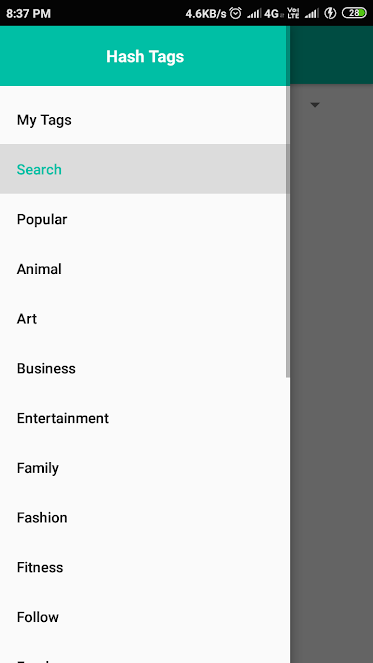
Hash Tags Android App
Image
Hash Tags Android App This app makes life easier by providing respective hashtags for social media promotions several categories are available and will be updates weekly. One can save their customise hashtags groups too. Download it now from play store by clicking the link below. Download App Now

Bill Splitting in BHIM App

On a tour or to a party or to a movie with friends sometimes we need to split the amount we spent among our loved friends. There are plenty of apps available in App Stores Today in this post we discuss about BHIM App (India) In this App a feature is available split bill, here you can add your friends mobile number, add total amount and get the amount splitted automatically. With one button click you can send money request to these friends who owns a BHIM app. Download BHIM Android App

Variables in Kolin Android Studio

Declaring of Variables in Kotlin using Android Studio:  val is used to declare a variable in Kotlin val is immutable i.e. it cannot be reassigned after it is declared. Method 1: val name: String val number: int val number: float val number: double val state: boolean Now declaring values for variables name="Tech Uplift" number= 1 number= 1.006 number= 1.5 state=false In the method  above variables are explicitly declared .Saying that the type of variable should be declared first. Method 2: In this method variables are not declared explicitly. They are straight way declared. val name="Tech Uplift" val number= 1 val number= 1.006 val number= 1.5 val state=false Similarly var can be used but var is mutable can be changed even after it is declared.

How to set text for a TextView in Android using Android Studio

How to set text for a TextView in Android using Android Studio. Example : On button click set text for TextView: In Java: Step1: Declare String, TextView private String name="Tech Uplift"; private TextView textView; Step 2: Declare TextView in onCreate method. Step3: In on Click Method set like this: private void changeText(){ //this is the line that sets the text to the TextView textView.setText(name); } In Kotlin: Step1: Declare String, TextView val name: String  name="Tech Uplift"  TextView textView Step2: Declare TextView in onCreate method (optional) Step3: In on Click Method set like this: fun changeText(){ //this is the line that sets the text to the TextView textView.text=name } *in Kotlin semicolon operator not required.